

i have word set up to publish directly to my blog but i cant figutre out how to show in the menu which site i can post to i dont want to randomly post how do i see the settings ..”publishing settings currently set up”?
To see which blog site you are currently set up to post to in Microsoft Word, you need to use the Manage Accounts feature within the specialized Blog Post tab. This tab only appears when you are using the specific blog template. [1, 2, 3]
How to See Your Current Publishing Settings
- Open the Blog Post Template: Go to File > New and select Blog post. This will open a new window with a different set of tabs at the top.
- Locate the Blog Post Tab: Look at the ribbon (the menu at the top); you should see a unique tab labeled Blog Post.
- Check Your Accounts: In the Blog group (usually on the far left of that tab), click the Manage Accounts button.
- Review the List: A dialog box will appear listing all the blog accounts you have registered. The account with a checkmark next to it is your default site—this is where Word will post unless you change it. [1, 2, 3, 4, 5]
Managing Multiple Sites
If you have more than one site and want to ensure you aren’t “randomly posting,” you can use the same Manage Accounts window to: [1]
- Set a New Default: Select the site you want to use and click Set as Default.
- Remove Old Sites: Select any accounts you no longer use and click Remove.
- Add New Sites: Click New to register a different blog provider (like WordPress or Blogger). [1, 3, 4, 5]
Would you like help linking a new blog or setting up a specific platform like WordPress?
Show all
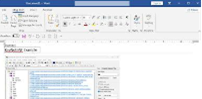
To see which blog site you are currently set up to post to, you can use the Manage Accounts button located directly in the Blog Post ribbon of your Word document.
Based on your image, here is exactly where to look:
- Locate the “Blog” Group: On the far left of the Blog Post tab, there is a section labeled “Blog”.
- Access Your Settings: Click on the Manage Accounts icon (the one with the small gears and a person).
- Verify the Active Site: A window will open showing all registered blog accounts. The site with a checkmark next to it is the one currently active for publishing. [1, 2, 3]
If you want to ensure you aren’t “randomly posting,” you can use that same “Manage Accounts” window to Set as Default the specific site you want or Remove any old sites you no longer use.
Do you have multiple accounts listed there, or are you trying to add a second blog for the first time?


3 sites
- What Me Pa..Panic? – A BLOG about SharePoint & O365 …
A common question that I’ve run into again lately is how can I set the Selected or Selected Text property of a dropdown control in…

Don’t Pa..Panic Consulting

- Help with blogging in Word – Microsoft Support
When the Insert tab is selected, you can add photos, hyperlinks, and other items to your post. * Type a title for your post at the…

Microsoft Support
- Words Online Missing Right-Click Context Menu – Microsoft Q&A
Aug 14, 2021 — 3 answers · Doug Robbins – MVP – Office Apps and Services •. Follow. 322.7K Reputation points • MVP • Volunteer Moderator · Anonym…

Microsoft Learn

hmm an account is missing?
If an account isn’t appearing in the “Manage Accounts” list, it likely hasn’t been registered in Word on this specific computer yet. Word stores these blog connections locally, so if you’ve recently updated your software or are using a different device, you’ll need to re-link it. [1, 2]
How to Add the Missing Account
- Open the Account Manager: From the Blog Post tab (which you already have open in your screenshot), click Manage Accounts.
- Start a New Registration: Click the New button at the top of the dialog box.
- Select Your Provider: Choose your blog service (e.g., WordPress, Blogger, SharePoint) from the dropdown list. If yours isn’t listed, choose Other.
- Enter Your Credentials:
- Blog URL: Enter the web address of your blog.
- Username & Password: Use the exact login info you use to sign in to your blog’s dashboard online.
- Finalize: Click OK. Word will attempt to connect to your site. Once successful, it will appear in your account list. [1, 2, 3, 4, 5]
Common Reasons for “Missing” Accounts
- Device Change: Blog settings do not always sync across different computers, even if you’re signed into the same Microsoft account.
- Password Update: If you recently changed your blog password online, Word may “lose” the connection until you re-enter the new credentials.
- Permissions: Ensure you have Admin or Editor privileges on the blog site itself, or Word may be unable to verify the account. [1, 2, 3]
Which blog provider (like WordPress or Blogger) are you trying to add back in? I can give you the specific URL format you’ll need for it.